
Beginner’s Tidbits: Single-Clicking vs Double-Clicking
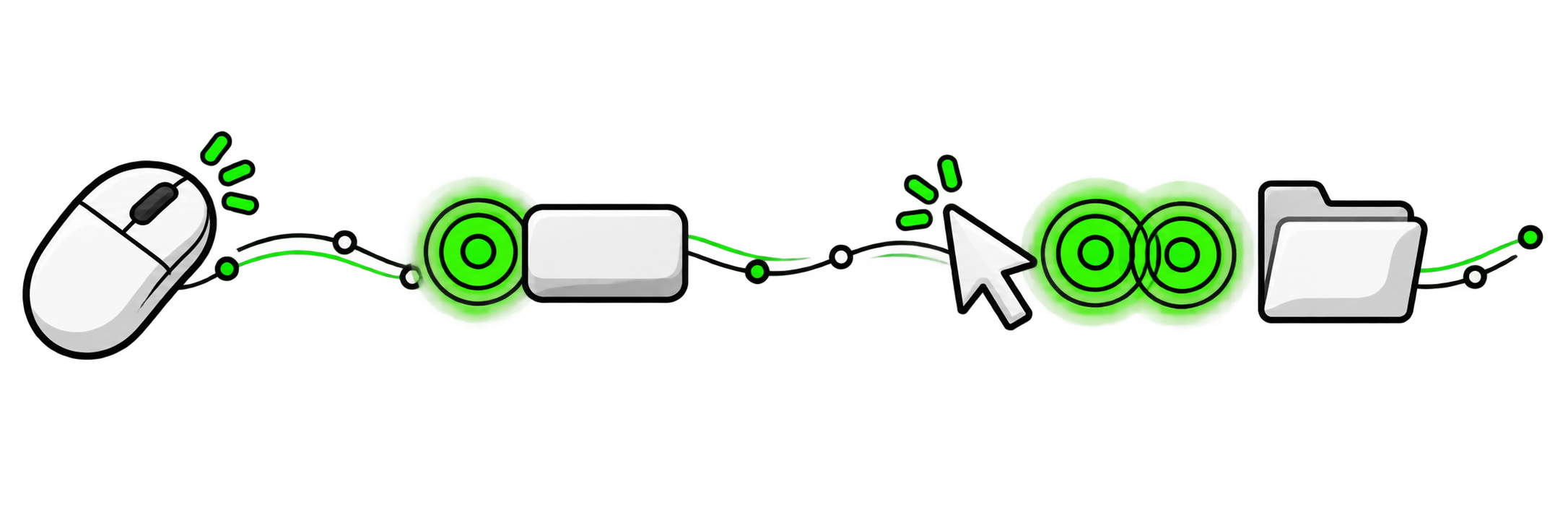
Single-clicking and double-clicking can feel strangely random when first learning to use a computer. Some things open with one click, while others sit there waiting for a second. There is a general pattern behind it, but the pattern is not perfectly consistent across every device, program, or website.
The most important thing to know is that this does not need to be understood too deeply. Learning when to single-click and when to double-click mostly comes through familiarity and practice. After enough time using a computer, the difference begins to feel automatic. Until then, the screen and mouse pointer often provide clues about what to do.
As a basic starting point:
Single-click something that behaves like a button.
Double-click an icon, file, or folder that needs to be opened.
When to Single-Click
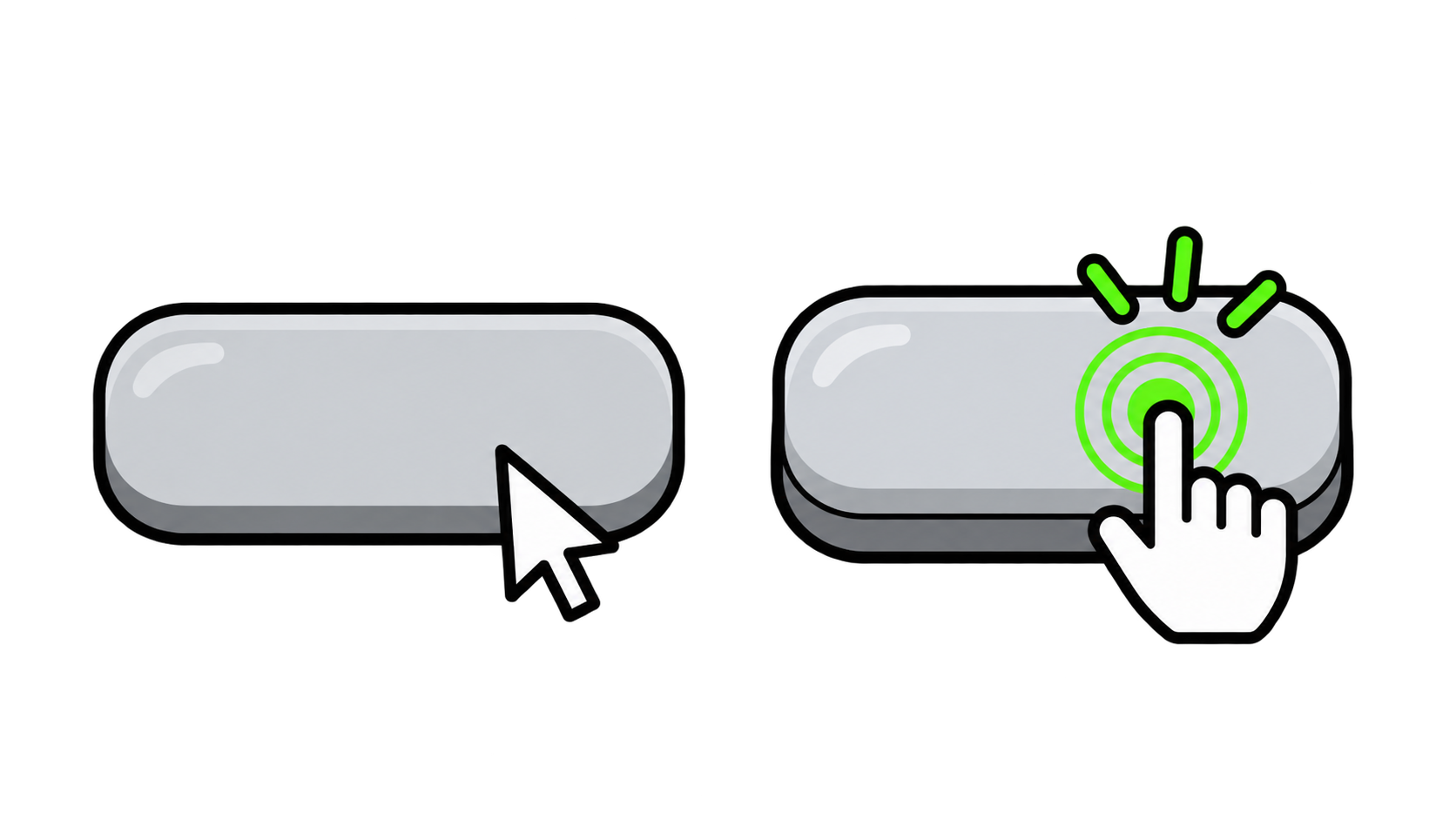
A single click means pressing and releasing the main mouse button once. On most mice, this is the left button. On a laptop touchpad, the same action may be performed by pressing the touchpad once or tapping it once with one finger.
A helpful way to understand a single-click item is to think about a physical button. A physical button sticks out, gets pressed once, and activates something. Digital buttons work in much the same way. They may say Save, Next, Submit, Download, or Play, or they may use an image or symbol instead of words.
There are often visual clues that something is a button. Slowly move the mouse pointer over an item and watch closely. The item may subtly change colour, become brighter or darker, gain an outline, rise slightly, or otherwise react. This small animation is the computer’s way of showing that the item can be pressed.
The mouse pointer may also change into a hand with one finger pointing. This commonly appears over links and other clickable items, especially on websites. When the pointer changes into a hand, one click is normally enough.
Single-clicking is commonly used to:
Press buttons
Follow website links
Open website menus
Select options
Place the typing cursor inside a text box
Check boxes
Play or pause a video
Use controls inside a program
The important clue is that the item reacts when the mouse moves over it. If the pointer changes or the item begins to look and behave like a button, give it one click.
When to Double-Click
A double click means pressing and releasing the main mouse button twice in quick succession. The two clicks should happen close together, without moving the mouse.
Double-clicking is most commonly used for files, folders, program shortcuts, and icons. These items often do not rise, animate, or turn into obvious buttons when the mouse passes over them. Instead, they wait for two clicks.
A useful way to picture the double click is as two quick instructions:
This is the item I am interested in.
Please open or activate it.
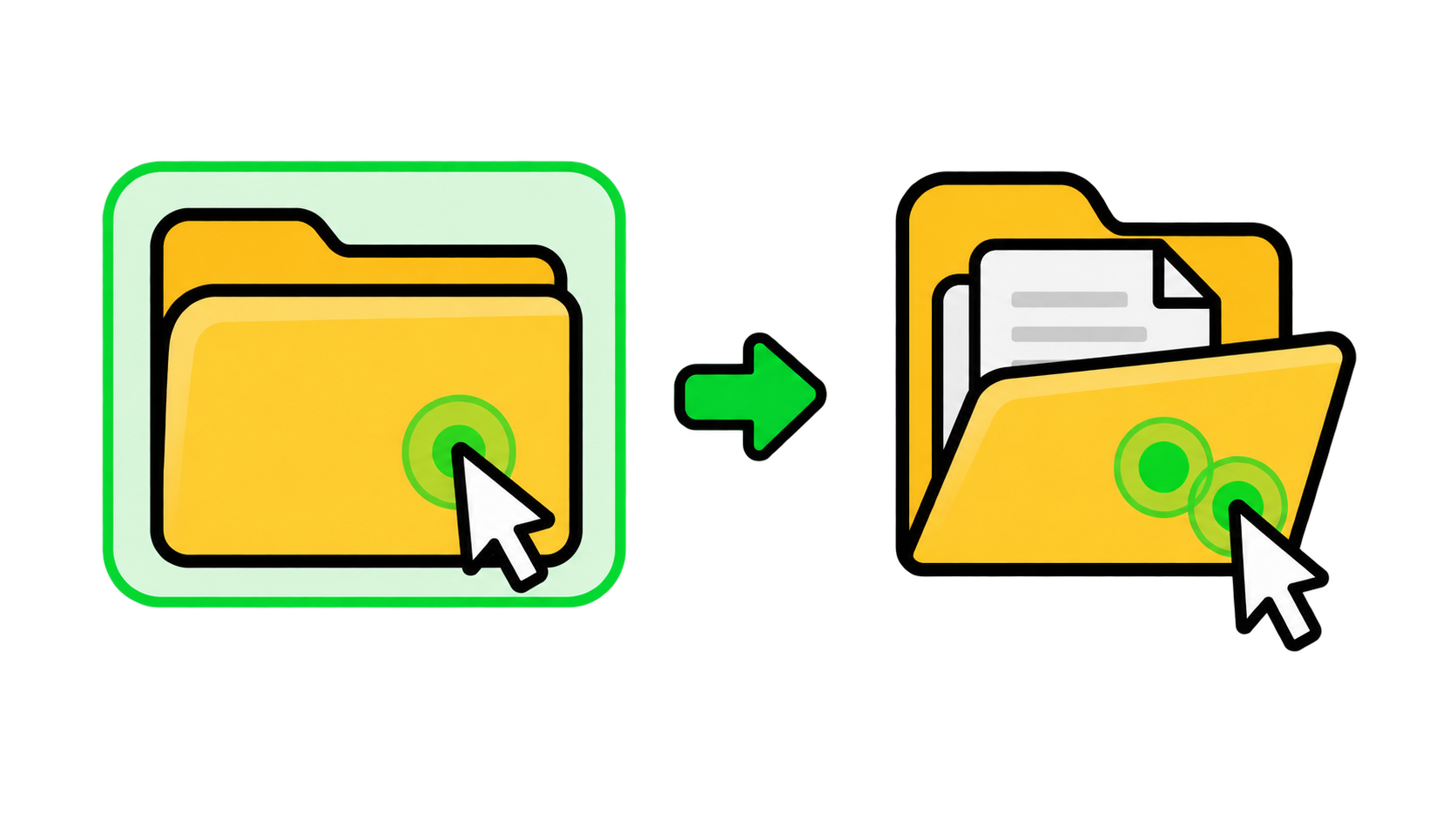
The first click selects the item. It may become highlighted, gain a coloured background, or show a border around it. This lets the computer know which item has been chosen. The second immediate click tells the computer to open that item.
For example, clicking a folder once usually selects it. Double-clicking the folder opens it and displays what is inside. The same pattern often applies to documents, photographs, desktop shortcuts, and program icons.
Some computer settings and programs behave differently, so this is not a perfect rule. Still, it is a useful starting point: if an icon does not react when the mouse hovers over it, and one click only highlights it, try two quick clicks to open it.
Watch the Mouse Pointer
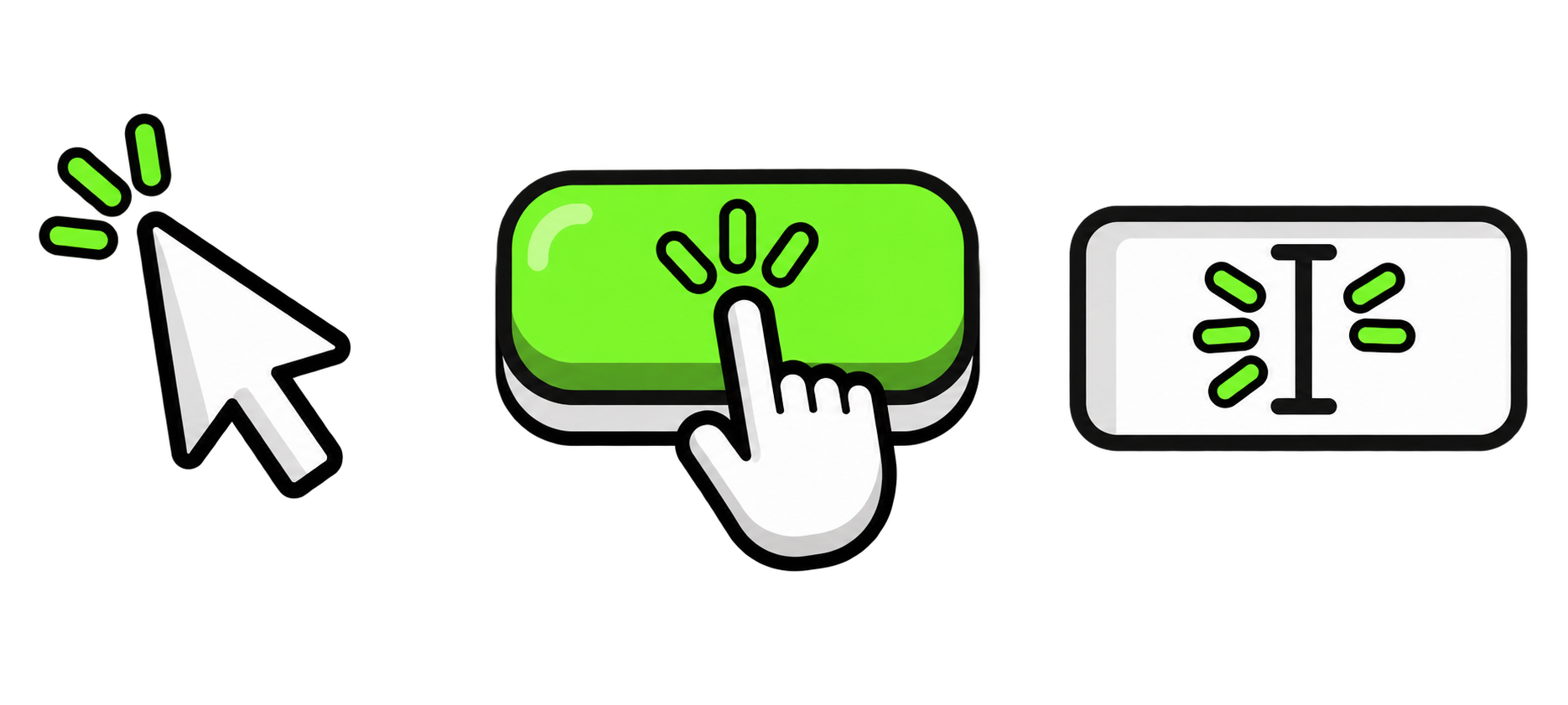
The mouse pointer (also called the ‘cursor’), does more than show a position on the screen. It can also provide information about what will happen next. Watching it closely can make clicking feel far less mysterious.
When moving the pointer over something, look for a change:
A pointing hand often means click once.
A button that changes colour, shape, shading, or position usually means click once.
An icon that does not change when hovered over may need two clicks to open.
An item that becomes highlighted after one click has been selected and may need a second immediate click to open.
These clues are common rather than universal. Some poorly designed buttons barely change at all, and some files can be opened with one click depending on the computer’s settings. Still, noticing the pointer and watching for small visual reactions provides a much better starting point than simply guessing.
How Fast Should a Double Click Be?
The two clicks should form a steady click-click. They do not need to be frantic, but they must happen close enough together for the computer to recognize them as one combined action.
If too much time passes between the clicks, the computer may treat them as two separate single clicks. If the mouse moves while clicking, the computer may think the item is being dragged instead of opened.
Double-click speed can be changed in the computer’s mouse settings. A slower setting can make double-clicking more comfortable when the standard timing feels too quick.
Website Buttons Usually Need One Click
Most things on a website require only one click. Links, menus, forms, video controls, and ordinary website buttons are designed to activate immediately.
A Buy, Send, Submit, or Download button should normally be clicked once. If nothing appears to happen immediately, allow the page a moment to respond. Double-clicking or repeatedly clicking can sometimes submit the same information twice, begin multiple downloads, or repeat another action.
Double-clicking is mainly associated with opening files, folders, icons, and program shortcuts. Single-clicking is much more common when using websites or controls inside a program.
Avoid Accidental Double Actions
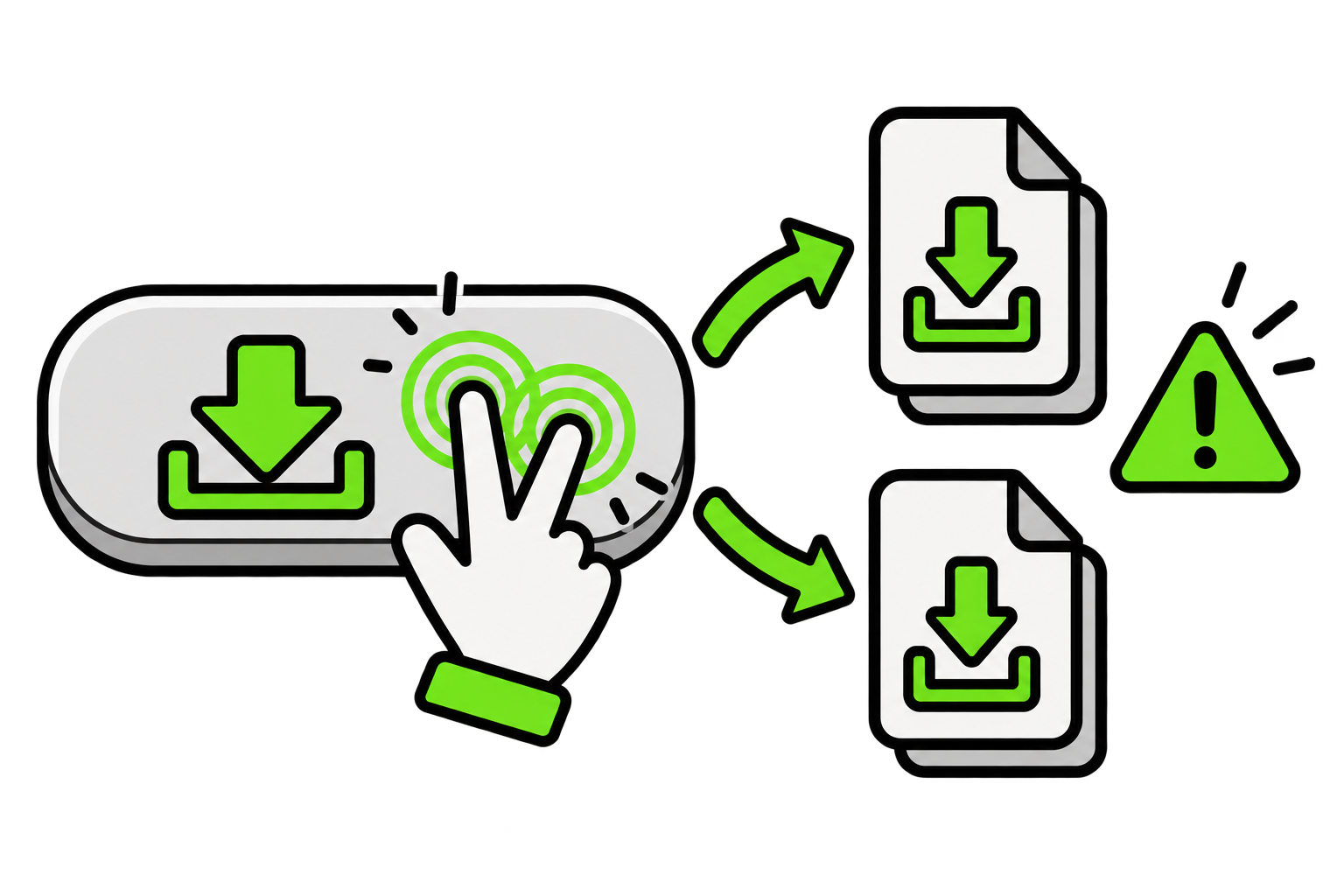
Taking a moment to click something properly can prevent accidental actions. When a single-click button is double-clicked, the computer may receive the same instruction twice. Instead of starting one download, submitting one form, or opening one window, it may attempt to perform the action twice.
Not every double click will cause trouble, but careful clicking is an important habit to practise. Pay attention to the item, use one deliberate click when it behaves like a button, and allow the computer a moment to respond before clicking again. With familiarity, this becomes natural and requires very little thought.
A Simple Reminder
Single-clicking and double-clicking may still feel a little silly. Computers could have been designed with one completely consistent way to open everything, but that is not the system that developed. Different types of items ended up responding to different types of clicks.
Fortunately, the screen often provides hints:
One click: The pointer changes, a pointing hand appears, or the item reacts like a button.
Two clicks: The pointer passes over an icon without changing, and the first click only selects or highlights the item.
These are helpful clues rather than strict laws. When uncertain, begin with one click and watch what happens. If the item becomes highlighted but does not open, follow with a double click. With practice, the choice begins to feel much less random and eventually becomes something that requires very little thought.