
The small symbol moving around a computer screen is usually called the cursor. Most of the time, it looks like an arrow. As it moves across different parts of the screen, however, its shape may change. Those changes are not random. They are visual cues that can help us understand what is under the cursor and what may happen if we click.

The cursor can show that something is clickable, that text can be entered or selected, that an object can be moved or resized, or that the computer is still working. Learning to notice these small changes can make a screen feel much less unpredictable. Instead of clicking and hoping for the right result, we can pause, look at the cursor, and gather a little more information first.
The Cursor Shows a Position on the Screen
The arrow-shaped cursor marks a position on the screen. It moves when a mouse is moved or when a finger slides across a laptop trackpad. The cursor does not usually perform an action simply because it is resting somewhere. It shows where the next action will happen.
For example, if the cursor is positioned over a button and the mouse is clicked, that button may open something. If the cursor is positioned over a file, clicking may only select the file instead. The same click can produce different results because the cursor was pointing at a different object.
This is why cursor placement matters. Before clicking, it can help to look at the pointed tip of the arrow. That small tip marks the most precise part of the cursor and usually identifies the exact location of the click.
• Hovering
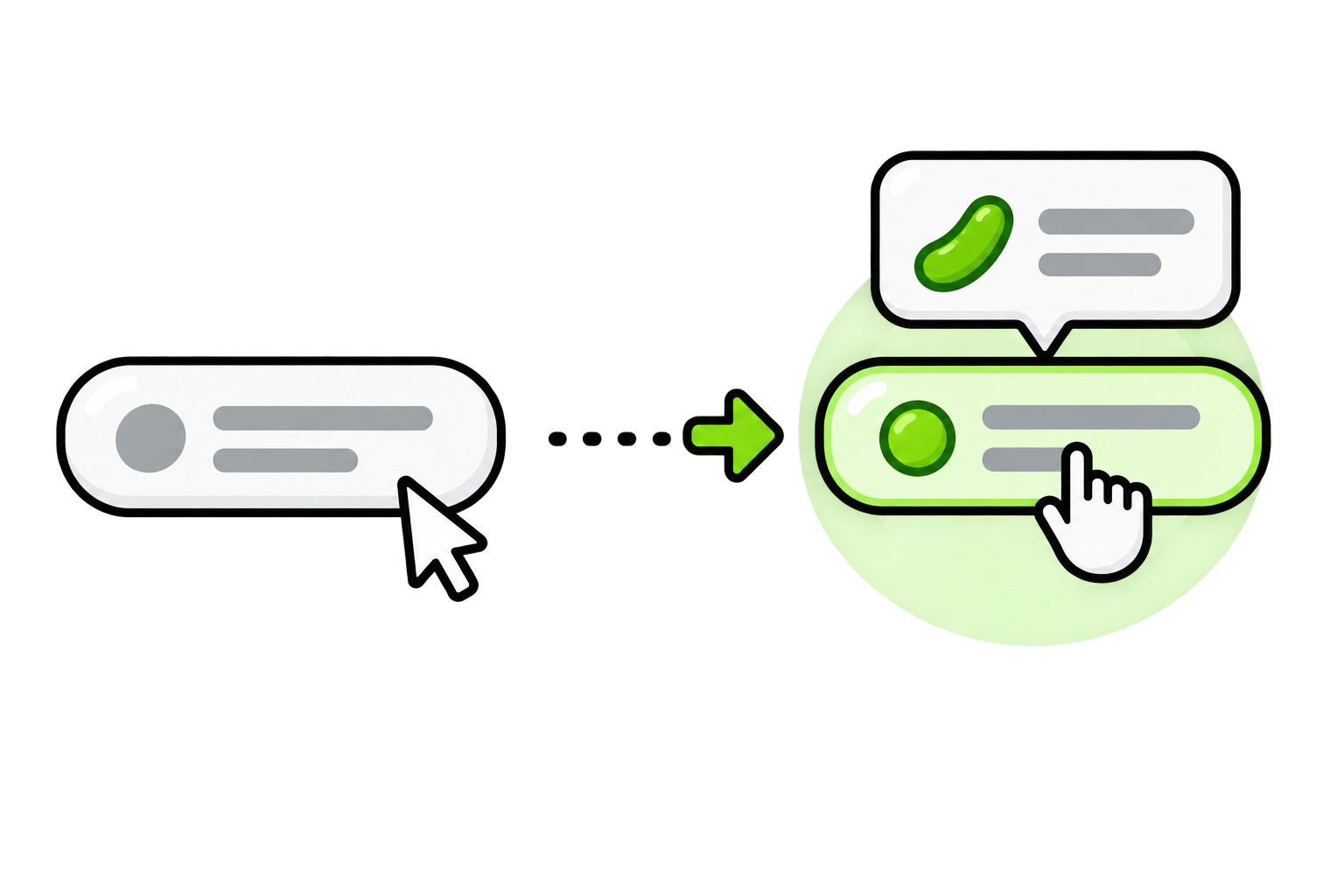
Moving the cursor over something without clicking is called hovering. Hovering gives an item an opportunity to provide more information before an action is taken.
When the cursor hovers over an item, the item may change colour, become underlined, grow slightly larger, display a small label, or reveal an additional menu. The cursor itself may also change shape. These responses suggest that the item can be interacted with, but hovering alone does not usually open or select it.
This makes hovering a useful way to explore an unfamiliar screen. A person can move the cursor slowly across buttons, words, pictures, and icons, then watch for changes. Those changes often reveal which parts of the screen are interactive and what to do next.
Common Cursor Shapes and Their Meanings
Cursor designs can vary between devices, websites, and programs, but several shapes appear often.
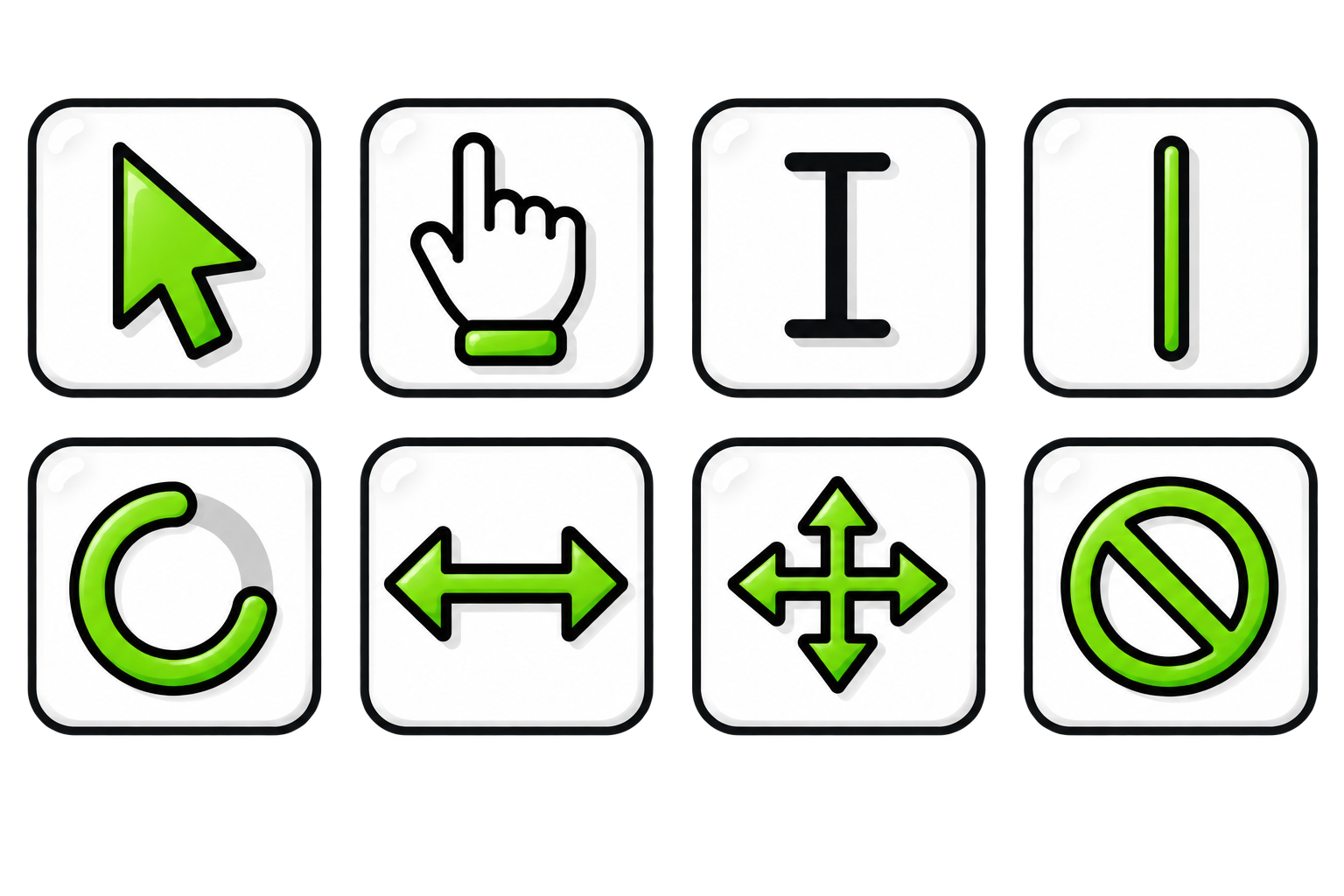
Arrow: The standard pointer. It shows the current position and can be used to point at, click, or select many items.
Pointing hand: Often appears over a link, button, image, or another clickable item. It is a strong clue that clicking will lead somewhere or perform an action.
I-shaped text cursor: Often appears over selectable or editable text. Its narrow shape makes it easier to place the cursor between letters or choose part of a sentence.
Blinking line: Shows the place where typed text will appear.
Spinning circle or loading symbol: Means the computer or program is processing something. The current action may need a moment to finish a command.
Double-ended arrow: Often appears along an edge or boundary that can be resized. Dragging in the direction of the arrows may make the area larger or smaller.
Four-direction arrow: Often means an object can be moved by clicking and dragging it.
Unavailable symbol: Usually means the attempted action cannot be completed in that location. Typically a circle with a diagonal line through the center.
These shapes are clues rather than absolute promises. A website or program may use a custom cursor, and some interactive items may not cause an obvious change. Still, recognizing the common shapes provides a helpful starting point.
• Selecting
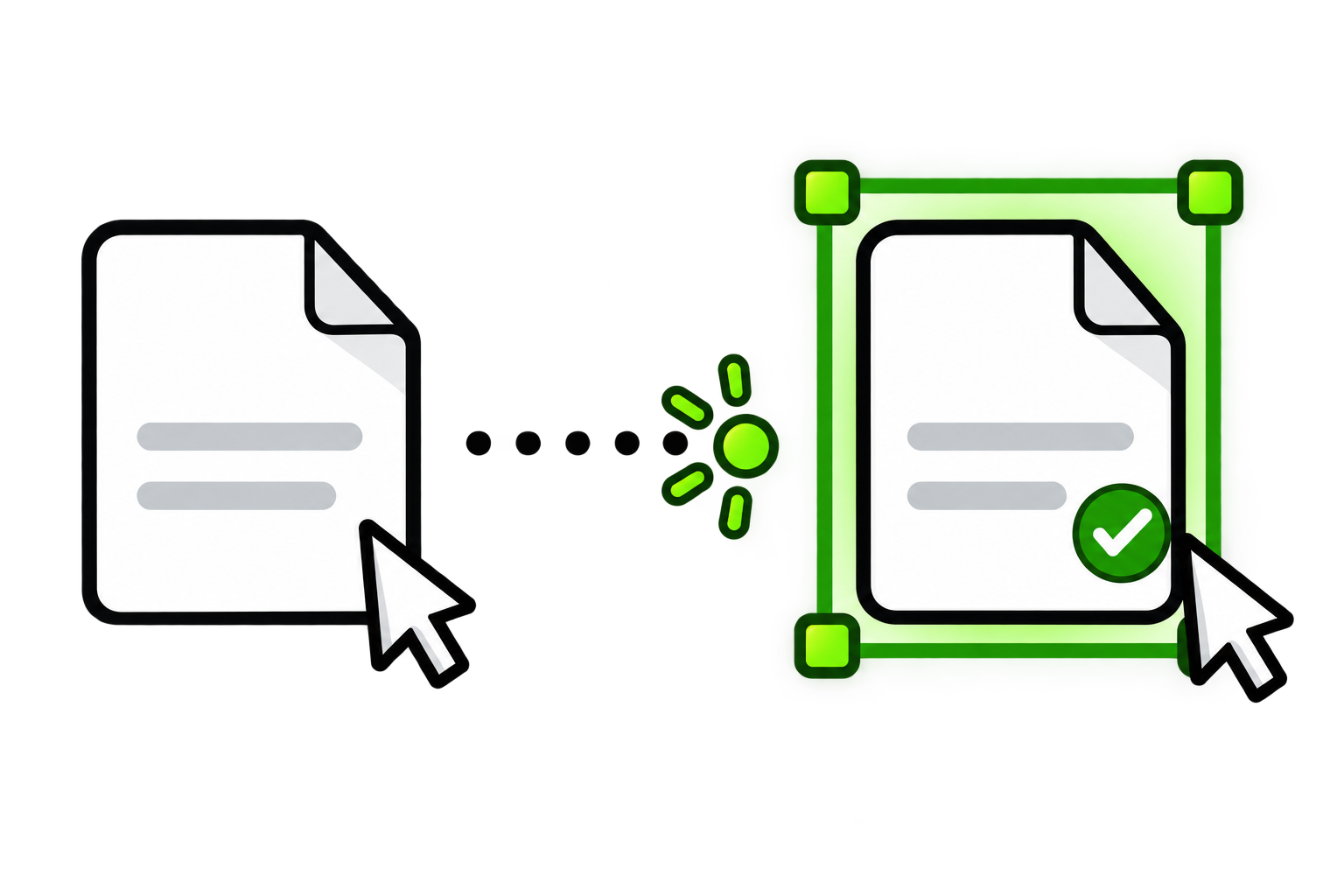
Selecting tells the device which item or information should be affected by the next action. A selected item may become highlighted, outlined, shaded, or surrounded by small handles. This visible change confirms that the device has recognized the selection.
A single click often selects something. Once selected, the item may be ready to open, move, rename, copy, delete, or edit.
A single click does not always perform the final action. Sometimes it only identifies the item that the next command will affect.
Watch for More Than the Cursor
The cursor is only one of several visual clues on a screen. The item beneath it may also respond. A button might darken, a link might become underlined, or an icon might display a label. When several clues appear together, the possible action becomes easier to recognize.
For example, imagine moving the cursor over a word on a webpage. The arrow changes into a pointing hand, and the word becomes underlined. Both changes suggest that the word is a link and can be clicked. Moving the cursor away may return the word and cursor to their earlier appearance. Nothing has been opened because no click has happened; the screen has simply offered a preview of an available action.
Pause, Point, and Look
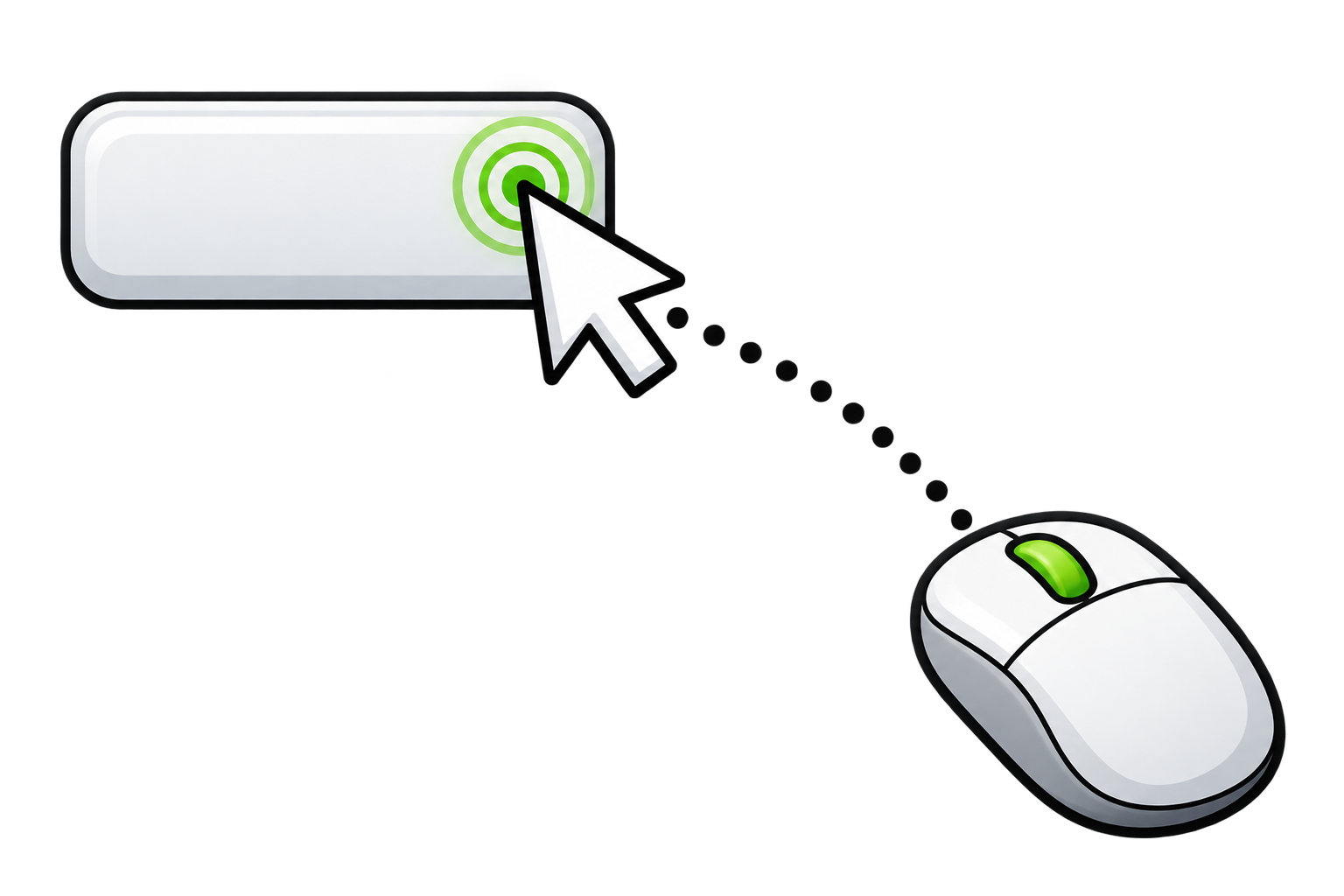
When a screen feels unfamiliar, there is no need to click immediately. Move the cursor toward the item, pause over it, and look for a response. Notice the cursor shape, any change in the item, and any label or message that appears.
A simple pattern can help:
Point the cursor at the item.
Pause without clicking.
Look for visual changes or extra information.
Click only after the likely action becomes clearer.
Over time, recognizing these cues becomes automatic. The arrow, pointing hand, I-shaped cursor, and blinking line begin to feel less like separate symbols and more like a quiet conversation with the screen.
The Cursor Is Giving Information
The cursor is more than a marker showing where the mouse happens to be. It can tell us what kind of content is underneath it, what action may be available, and where the next click, drag, or typed letter will take effect.
Not every screen provides perfect clues, and cursor shapes can differ slightly from one place to another. The goal is not to memorize every possible symbol. The more useful habit is to notice when the cursor changes and treat that change as information. A brief pause before clicking can reveal a great deal about what the screen is ready to do.